Animate
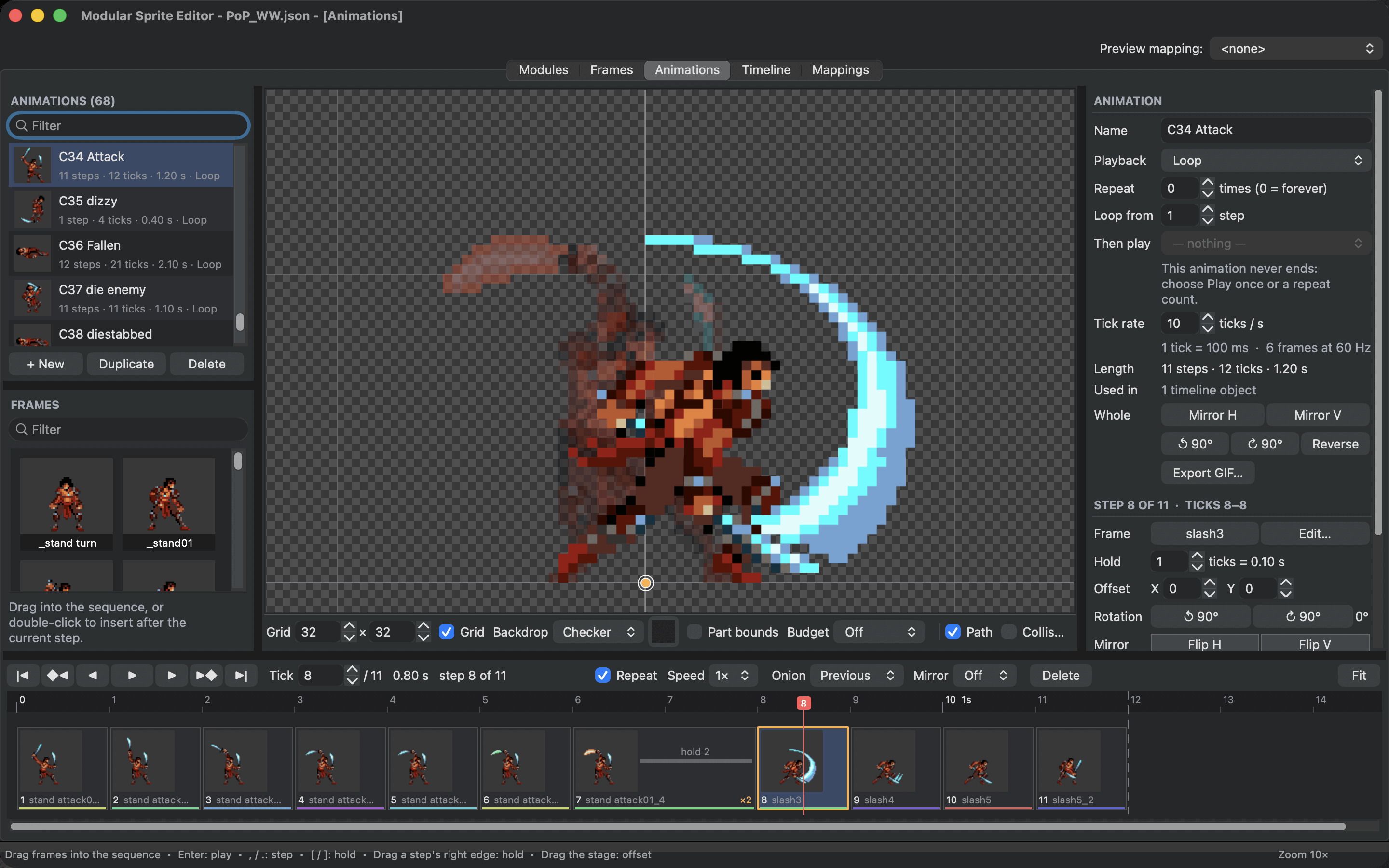
An animation is a row of steps. Each step shows a frame for a number of ticks, and can move, flip or turn it. The Animations tab plays them exactly as the game will, so what you time here is what players see.
Make an animation
Choose + New under the animation list. Each row shows how many steps and ticks the animation has, how long it lasts and how it plays.
Add steps from the Frames palette below the list: drag a frame into the sequence at the bottom, exactly where it should go, or double-click it to add it after the current step. You can also drop frames on the stage.
In the sequence:
- click a step to select it, Shift-click to select a range and Cmd-click to add single steps;
- drag a step to move it, hold Alt to copy it instead;
- Del removes the selected steps;
- double-click a step to open its frame in the Frames tab.
Right-click a step for more: Swap frame... shows another frame in the same step, Reverse order reverses the selected steps, and the menu also flips, turns, copies and pastes steps.
Timing
Time is counted in ticks. Tick rate in the inspector sets how many ticks make a second, and the line below it says what one tick is in milliseconds and in frames of a 60 Hz screen. Ten or twelve ticks a second is a good start for pixel-art animation.
Each step holds for a whole number of ticks. In the sequence, a step is as wide as its hold, so you can see the rhythm at a glance. Change a hold by dragging the right edge of a step, with [ and ], or in Hold in the inspector. Several selected steps change together.
When the same frame appears more than once, a coloured stripe under its steps shows it, which helps when you build a loop from a few poses.
Play it like the game
Press Enter to play and stop. , and . step one pose back or forward, Shift+, and Shift+. one tick, Home and End jump to the first and last step. Speed plays at half, a quarter or double speed, and Repeat in the transport keeps a finished animation playing in the preview.
Playback in the inspector decides how the animation plays in the game, and the preview follows it exactly:
- Loop plays the steps over and over.
- Play once plays them once and stops on the last step.
- Ping-pong plays forward, then backward, then forward again, without repeating the end steps.
- Loop backwards plays the steps from last to first, over and over.
Repeat sets how many times a repeating animation plays before it ends, 0 for forever. Loop from makes later passes of a loop start at a later step, so an intro, such as drawing a sword, plays only once. Then play names an animation that starts when this one ends, such as an attack that returns to the idle pose. The inspector warns when an animation can never end, because then it never reaches what follows.
Moving, flipping and turning steps
Select a step and its settings appear under Step in the inspector.
Offset moves the frame in this step. Drag on the stage or use the arrow keys. Offsets are how a character moves forward while it runs or jumps: turn on Path in the view bar to see the motion of every step as a line.
Rotation turns the step's frame in 90 degree steps, and Mirror flips it. The Mirror preview in the transport shows the whole animation flipped, to check how it looks when the character faces the other way. The preview only changes the view.
Whole applies to every step at once: mirror, turn, Reverse.
Onion skin
Onion in the transport shows the previous step, the next step or both as faint ghosts: the previous in red, the next in blue. Use it to keep spacing even and to find jumps between poses.
Events
A step can tell the game that something happens: a footstep sound, the moment a sword hit counts, where a projectile appears. Select steps, then under Events in the inspector pick an event or type a new name, and choose Add. A new name joins the project's list of events. Each event on a step can have a value, such as which sound to play.
Event types... manages the list of event names and their colours for the whole project. On the stage, the current step's events show as small labels and light up when their step starts during playback, the moment the game receives them.
Export a GIF
Export GIF... writes one cycle of the animation as an animated GIF, with the preview mapping applied. It looks exactly like the editor's preview.