A tour of the editor
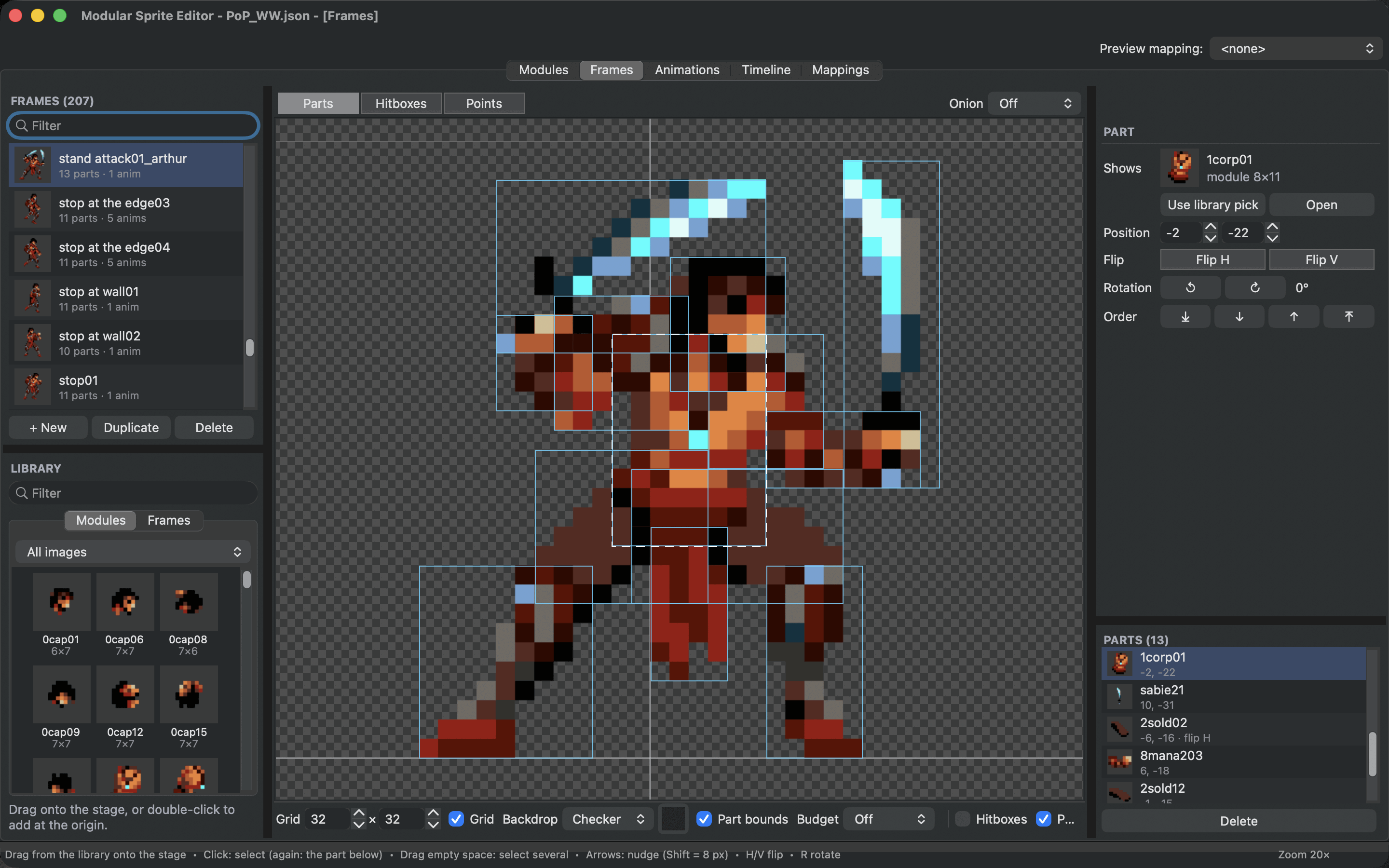
The editor keeps one project open at a time: your images, the modules cut from them, the frames, animations, scenes and mappings. Five tabs show the same project from different sides.
The five tabs
Modules shows your images. Here you cut them into modules and set each module's pivot, the point that is placed when the module is used in a frame. See Cut a sheet into modules.
Frames is where you build poses from modules and other frames. It also holds the hitboxes and points a game needs. See Build frames from parts.
Animations puts frames in order and times them in ticks. See Animate.
Timeline stages scenes: several objects that move, flip and change their animations over time. See Stage a scene.
Mappings swaps modules for others to make variants. See Variants with mappings.
Switch tabs with the tab bar or with Cmd+1 to Cmd+5 (Ctrl on Windows and Linux).
The preview mapping
At the top right, Preview mapping chooses the mapping every tab shows. Leave it at
Moving around the canvas
Every canvas works the same way:
- Zoom with the mouse wheel, two fingers on a trackpad or a pinch. The zoom glides while you scroll and then settles on a whole pixel size (1×, 2×, 3× and so on), so pixels always stay square.
- Pan by holding Space and dragging, by dragging with Alt held, or with the middle mouse button.
- Fit everything into view with Cmd+0. Cmd+Shift+0 shows actual pixels.
The view bar under each canvas holds the view options: Grid and its size, Backdrop (a checkerboard or a colour), Part bounds, which outlines every module in a pose, and Budget, the hardware budget overlay. These only change what you see, never your project.
Lists
Lists work the same in every tab. + New, Duplicate and Delete sit under the list. Double-click a name or press F2 to rename it, drag rows to reorder them, and type in Filter to find something by name. Thumbnails show what each entry looks like.
Undo, save and hints
Undo (Cmd+Z) and Redo (Cmd+Shift+Z) work across all tabs: an undo goes back to before your last change, wherever you made it. A drag counts as one change.
The window title shows an asterisk when there are unsaved changes, and the editor asks before closing an unsaved project. Save with Cmd+S.
The status bar at the bottom shows hints for the canvas under your mouse and the current zoom. Help ▸ Keyboard & Mouse Shortcuts (Cmd+/) lists every shortcut, and so does Keyboard and mouse.