Build frames from parts
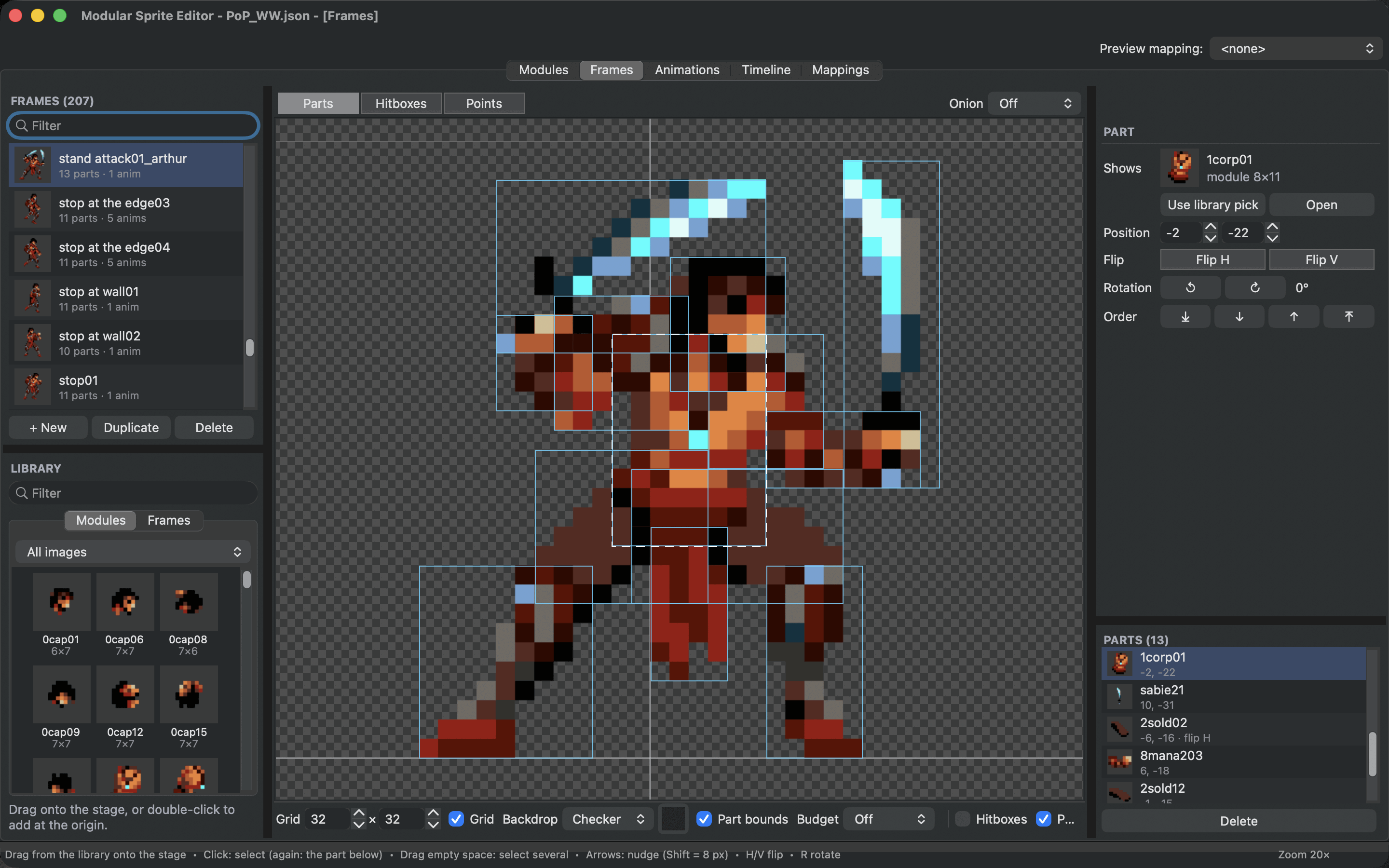
A frame is a pose made from modules. You place each part, flip or turn it, and decide which part is in front. Because frames use modules rather than copies of pixels, changing a module changes every pose that uses it.
Make a frame
Choose + New under the Frames list. Duplicate copies the selected frame, which is often the quickest start for the next pose.
The stage shows the frame's origin as two thin lines. The origin is the point the game positions, usually between the character's feet.
Add parts
The Library below the frames list shows your modules, one image at a time or all of them, and your frames. Drag a module onto the stage, or double-click it to add it at the origin. The module's pivot lands where you drop it.
Select and arrange
Make sure Parts is selected above the stage.
- Click a part to select it. Click the same spot again to select the part below it.
- Shift-click adds parts to the selection. Drag on empty space to select every part in a box. Esc clears the selection.
- Drag to move. Arrow keys nudge by one pixel, Shift by 8.
- H and V flip the selected parts, R turns them 90 degrees clockwise and Shift+R counter-clockwise.
- Cmd+Up and Cmd+Down move a part in front of or behind its neighbour. Add Shift to send it all the way to the front or back.
A flipped part stays where it is and mirrors its picture. Turns are about the part's pivot, in steps of 90 degrees, so pixels stay square.
The inspector shows the selected part: Shows names the module, Position is where its pivot sits, Flip, Rotation and Order do the same as the keys. To swap a part for another module, pick the new module in the library and choose Use library pick. Open shows the module in the Modules tab.
The Parts list at the bottom right lists every part of the frame, the front-most first. Drag rows to change the order.
Copy parts between frames
Select parts, copy them with Cmd+C, select another frame and paste with Cmd+V. They keep their positions. Cmd+D duplicates the selected parts in place. Cmd+A selects every part.
Use frames inside frames
Drag a frame from the library onto the stage to use it as one part. A nested frame keeps its parts together: build a head with its hair and helmet once, and place it as a single piece in every pose. Flip or turn it like any part. Changes to the nested frame show everywhere it is used.
Work on the whole frame
With nothing selected, the inspector shows the frame. Whole frame mirrors or turns every part at once. Origin has two helpers: Feet on origin moves all parts so the middle of the pose's bottom edge sits on the origin, and Centre puts the middle of the pose there.
Right-click a frame in the list for the same tools, and for Rename, Duplicate and Delete.
Compare with neighbouring poses
Onion above the stage shows the previous, the next or both neighbouring frames of the list as faint ghosts behind the current one. Use it to keep a pose in line with the ones around it.
Next
Frames can also carry hitboxes and points for the game. When you have a few poses, animate them.